Applying templates automatically
A checklist appears on a work item when an active template matches the current context. You do not manually attach a template each time; the extension loads every matching template automatically.
This page focuses only on matching behavior. For the full process, field, and template setup, see Setting up checklists for work items.
Work item type
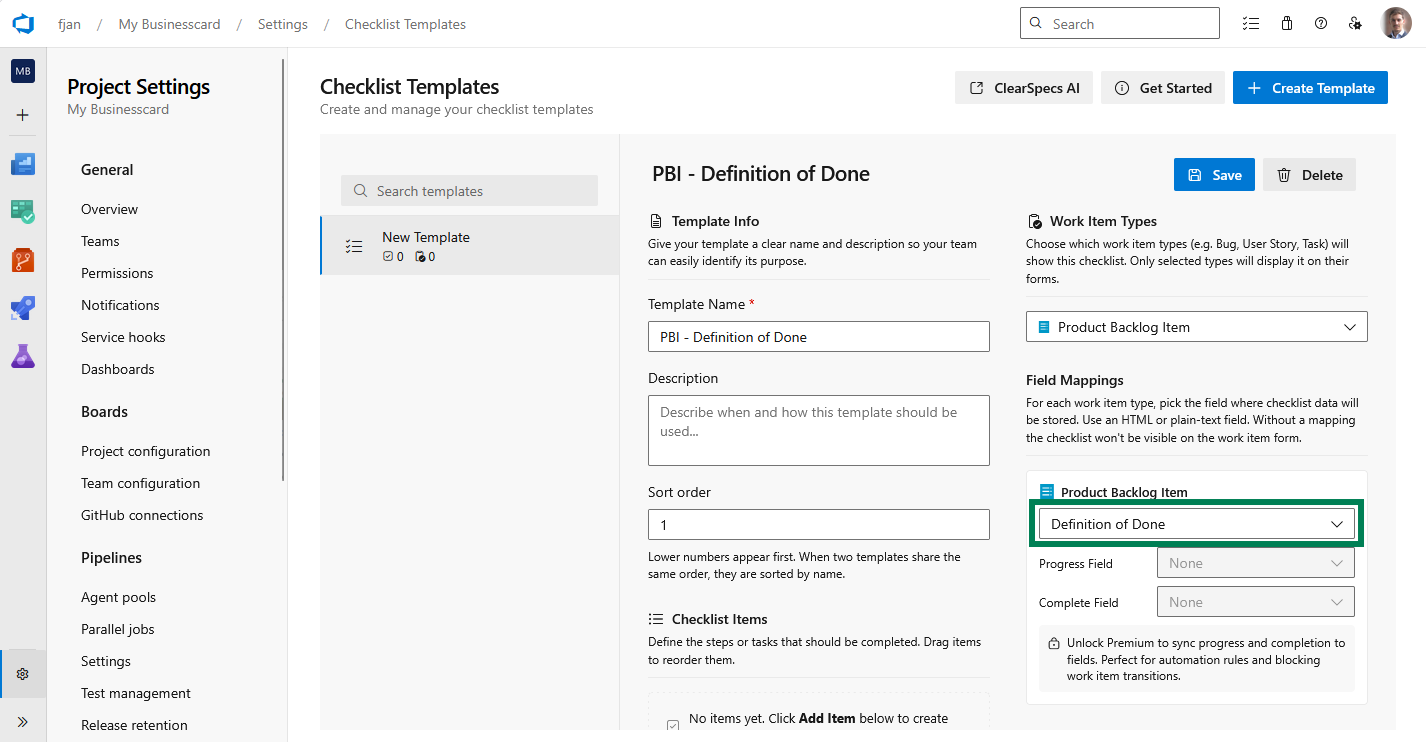
Each template lists which work item types it applies to, for example Bug, User Story, or Task. A template is only considered if:
- The current work item type is included on the template.
- The template has a content field mapping for that same work item type.
If the mapping is missing, the template does not apply even if the work item type is selected.
The template editor is where you choose supported work item types and map the checklist field for each one:
Team scoping
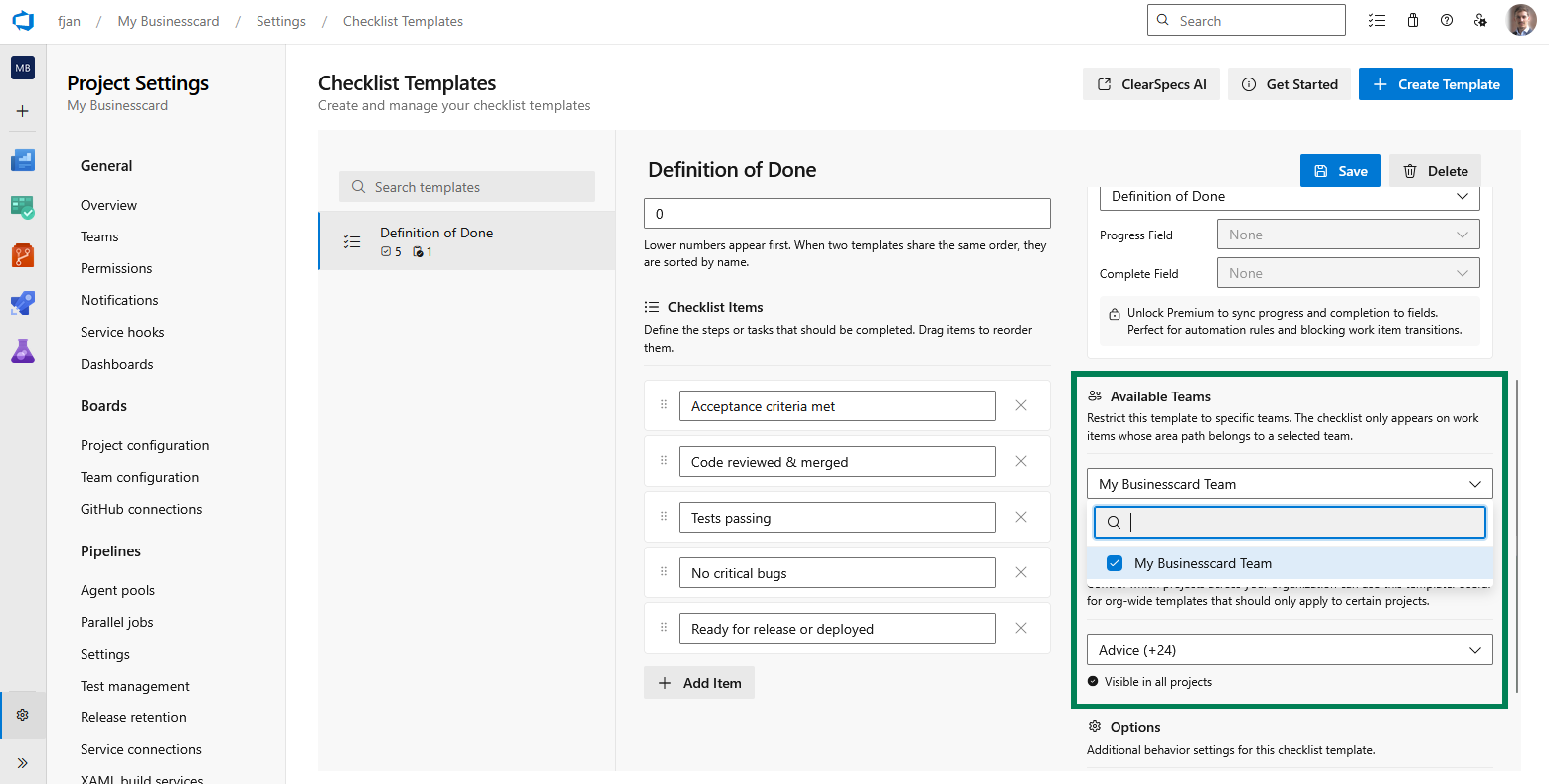
Templates can be limited to specific teams using Available teams. If no restriction is set, the template is available to all teams in scope for the project.
A work item is associated with a team through its Area Path. The extension reads each selected team's configured Area Paths (the team's Areas settings in Azure DevOps) and shows a scoped template only when the work item's Area Path is one of those areas — including sub-areas when the team has Include sub-area paths enabled.
This means scoping follows your Azure DevOps team area configuration directly, not the team's name:
- If the work item's Area Path is not owned by any selected team, the scoped template does not appear.
- If a team owns the whole project (its area is the project root with sub-areas included), its templates appear on every work item in that project.
- If team ownership cannot be determined (for example, the work item has no Area Path), the template is shown rather than hidden.
Project scoping
Templates can be limited to certain projects with Visible in projects. If unset, the template is visible in every project where the rest of the rules match.
Together, work item type, team, and project determine which templates contribute checklists when you open a work item.
Multiple matches
More than one template can match the same work item. When that happens, the work item form shows multiple independent checklists, one per matching template.
How content is merged
When the work item form loads, the extension renders checklists from matching templates and reads the existing markdown from each mapped content field. If more than one template matches the same work item type, each template must map a different content field — otherwise saving one checklist overwrites the other.
If the field already contains checklist data, the extension merges the template structure with the stored markdown so that:
- Existing completion state is preserved.
- Skipped items stay skipped.
- Existing custom items stay attached to that checklist.
- A saved item order is kept. Items added to the template later are appended at the end.
This lets teams update templates without wiping out work already tracked on the work item.
For more on day-to-day use, see Working with checklists, Reordering checklist items, and Working with templates.