Working with checklists
Checklists appear in the Checklist group on the work item form. Each checklist corresponds to one template that matched the work item when the form loaded.
On the work item form, the checklist appears in its own Checklist group:
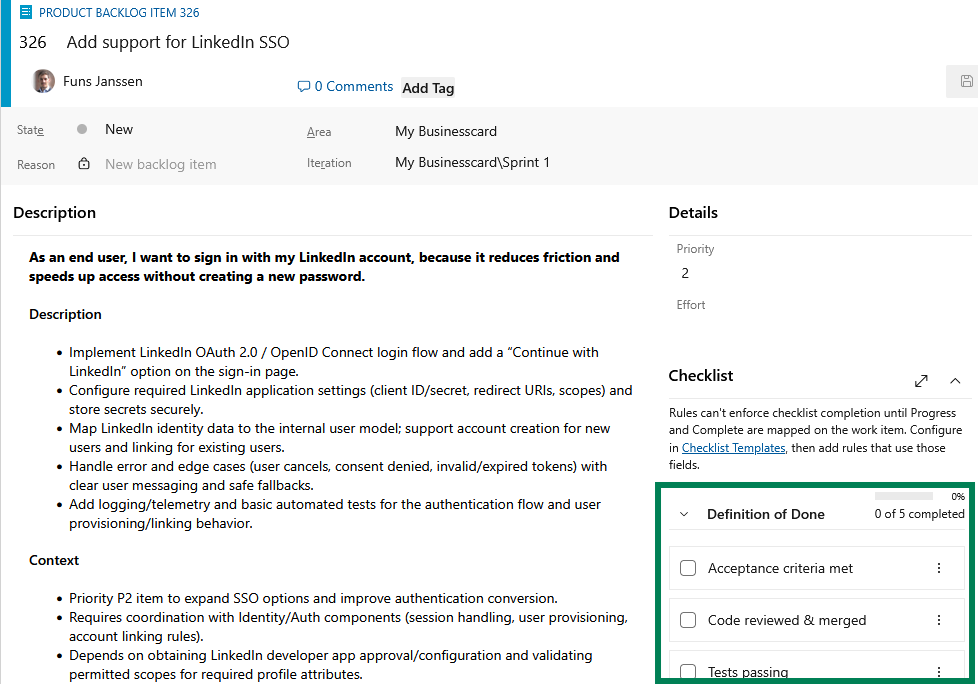
Multiple checklists on one work item
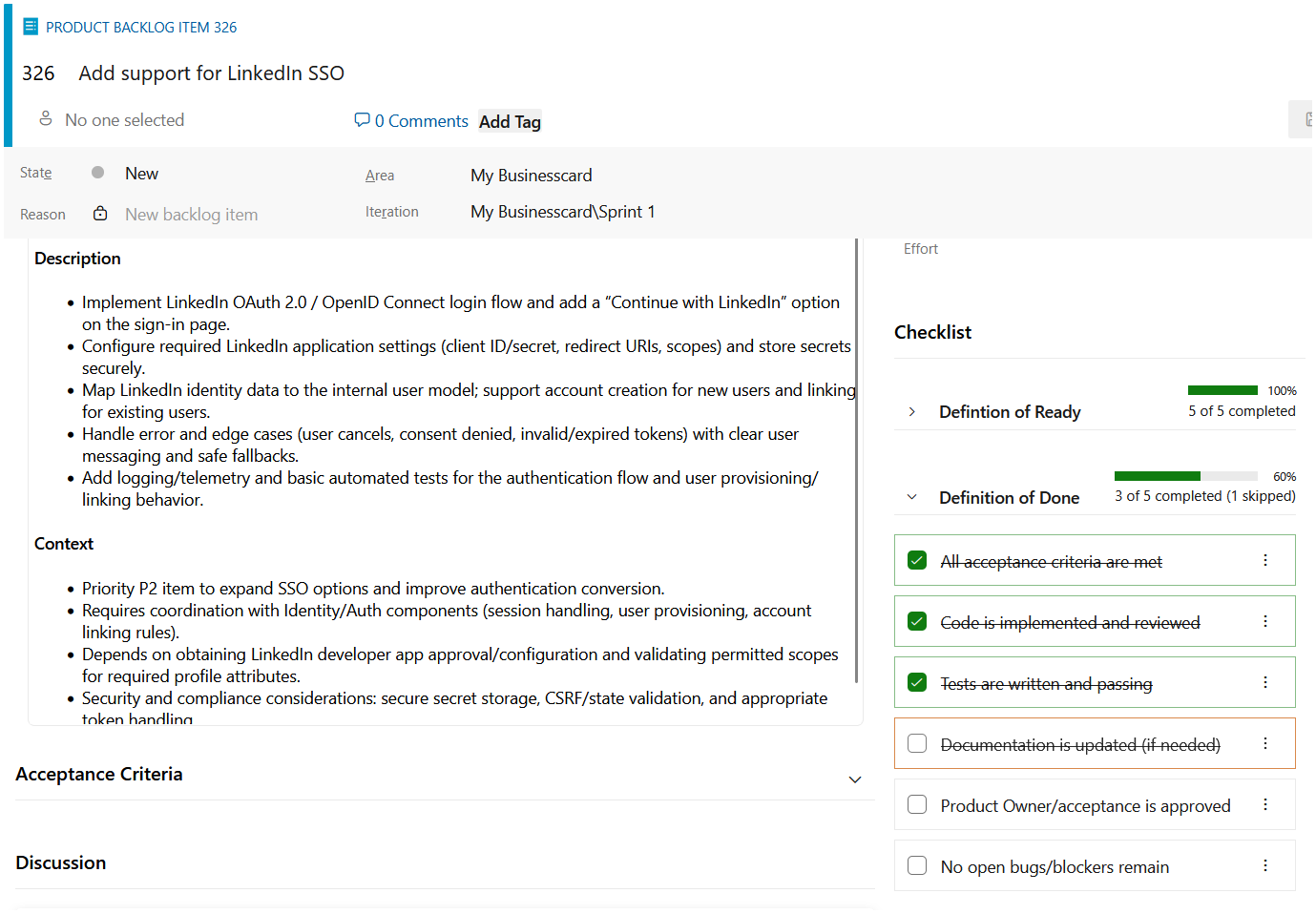
You can show several independent checklists on the same work item - each with its own title, items, and progress. That is useful when different concerns (for example release checklist vs test checklist) should stay separate instead of merged into one long list.
Completing and skipping items
- Complete an item to mark it done. Completed items are shown with strikethrough styling in the UI.
- Skip an item when it does not apply to this work item. Skipped items are excluded from progress calculations so they do not block a 100% completion score.
Templates can allow custom items added by users on the form when that option is enabled in the template.
Reordering items
When a Premium template allows it, people can drag items into a different order on that work item. The order is saved with the checklist. See Reordering checklist items.
Progress and collapse
- The extension shows completion percentage based on required, non-skipped items.
- Checklists that reach 100% can auto-collapse on load to keep long forms readable; you can expand them again when needed.
Themes and layout
The checklist UI follows Azure DevOps light and dark themes and adjusts layout (including auto-resize behavior) so the group stays usable on typical form widths.
Data and history
Checklist content is stored in the mapped work item fields as markdown. That means:
- Changes participate in field history like any other field.
- The extension avoids unnecessary writes when opening a work item so history stays meaningful.
If a mapped field is read-only or missing from the form, the UI surfaces a warning so you can fix the process layout or permissions.
Premium: progress and completion on fields
Storing the checklist text in a field is available on the free tier (within template limits). Syncing progress and completion to separate Single line text fields - for boards, queries, and rules - requires Premium field mappings. Letting people reorder items on the work item also requires Premium. See Working with templates and Customising cards with checklist progress & completion.