Working with templates
Templates define the structure of a checklist: name, items, ordering, which work item types can use it, and how data is stored on the work item.
Template management hub
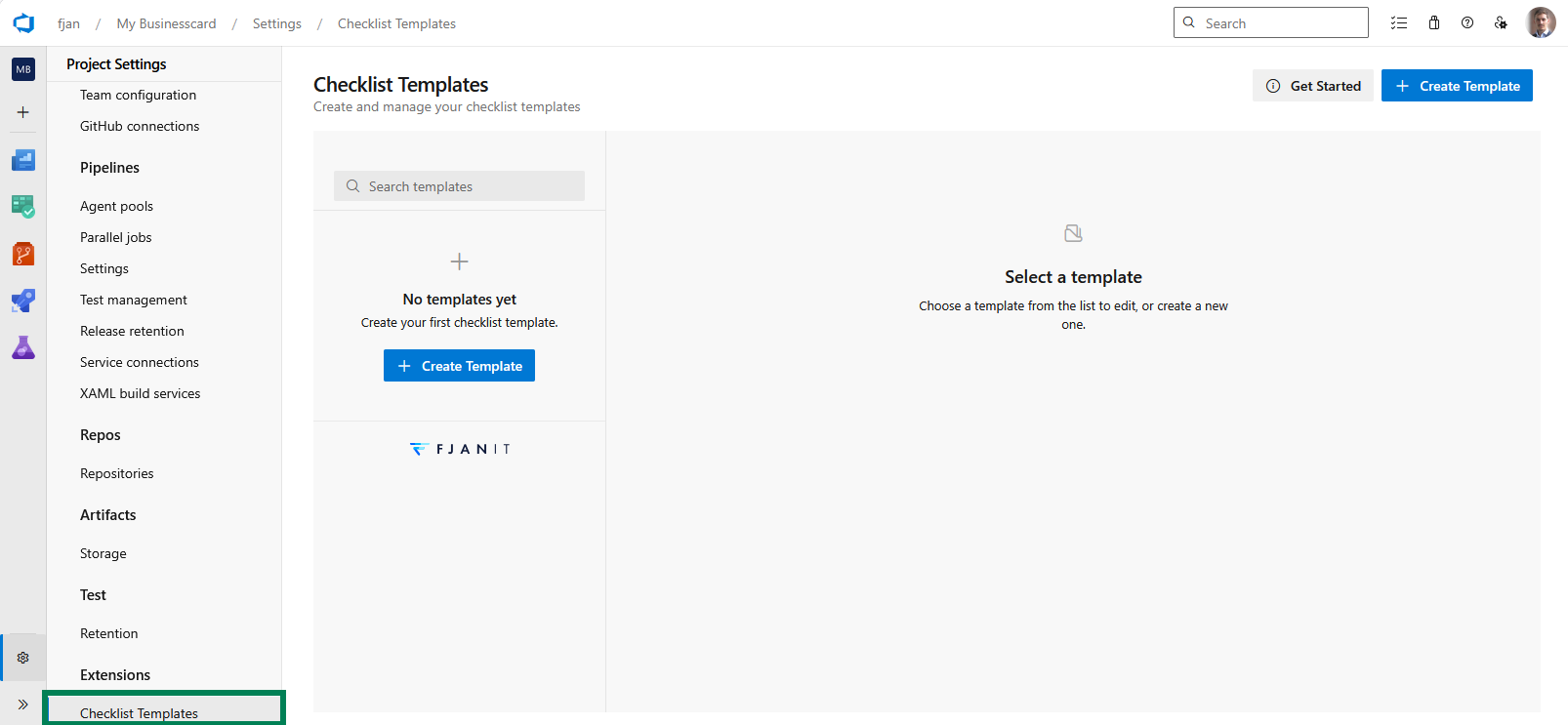
Open Project settings → Extensions → Checklist Templates to:
- Create, edit, activate, or deactivate templates.
- Reorder template items (drag and drop). That sets the default order for new checklists.
- Set sort order for how templates appear in management lists.
- Configure work item type targeting and scoping by team and project.
Use the Checklist Templates hub to create and manage templates:
Field mappings
In the template editor you choose supported work item types and map storage fields for each one:
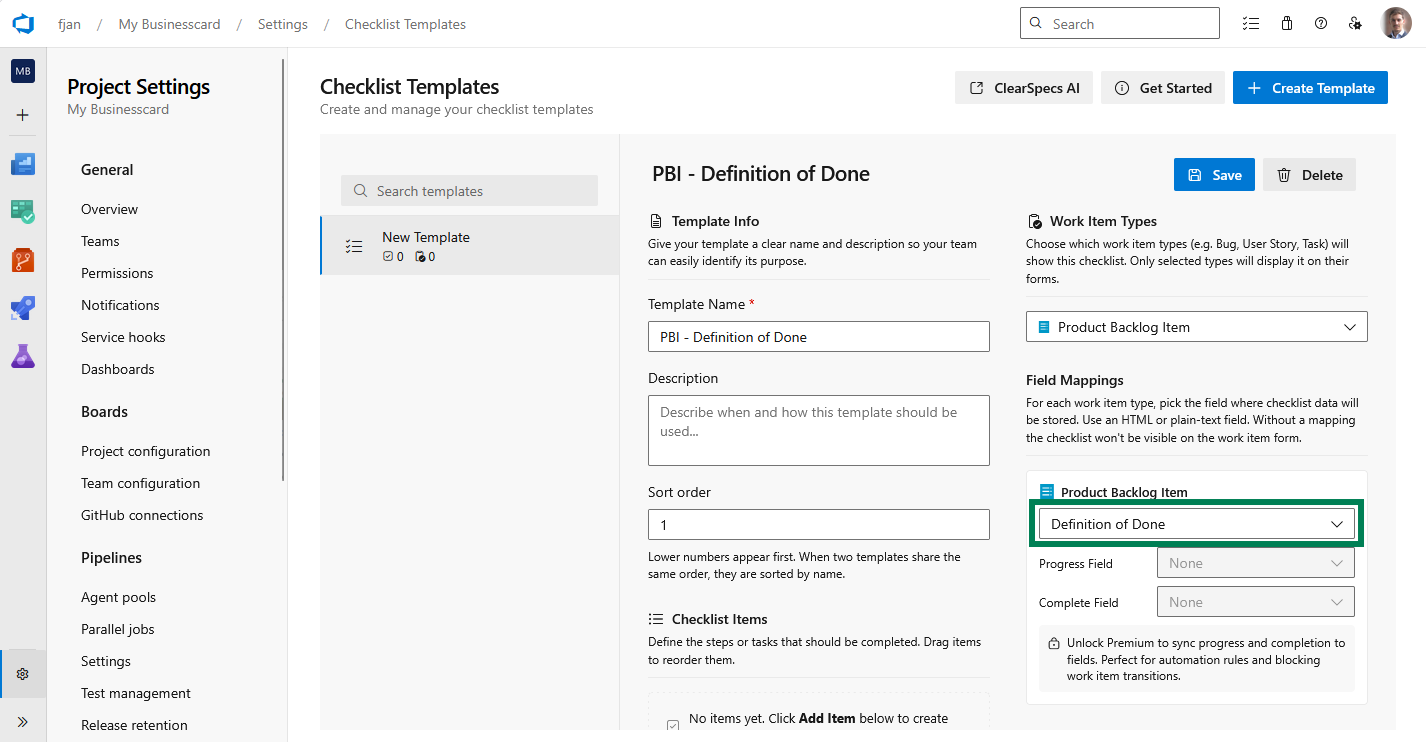
Each template needs a field mapping per work item type you support:
| Role | Purpose |
|---|---|
| Content (checklist) field | Stores the checklist as markdown. Required for the checklist to persist. Must exist on the work item form and be writable for normal editing. |
| Progress field (Premium) | Optional Single line text field updated with a readable summary (for example 100% (6/6)). |
| Complete field (Premium) | Optional Single line text field set to Yes when the checklist is complete and empty otherwise. |
One field per checklist (important)
Checklist progress is stored by replacing the entire mapped content field. If two templates for the same work item type share the same content field, editing one checklist overwrites the other and it looks like the other checklist was reset.
When you use multiple checklists on the same work item type, give each template its own content field (and its own Progress/Complete fields if you map those).
Progress and complete fields power board cards, queries, style rules, and transition rules.
If Premium mappings are not configured, you can still use the checklist on the form; you simply will not have those extra fields for automation until you map them.
Free and Premium tiers
| Free | Premium | |
|---|---|---|
| Templates | Up to 2 templates per organization | Unlimited templates |
| Checklist on work item | Yes | Yes |
| Markdown storage field | Yes | Yes |
| Reorder items in the template editor | Yes | Yes |
| Reorder items on the work item form | No | Yes |
| Progress + Complete field mappings | No | Yes |
Premium is presented in the extension when you hit the template limit, when you turn on work item reordering, or when you configure Progress/Complete mappings. See the marketplace and FJAN product pages for current pricing and terms.
Options
In the template editor, Options controls extra behavior on the work item form.
Allow users to add custom checklist items lets people add one-off lines that are not part of the template. That helps when a work item needs a small variation without editing the template.
Allow users to reorder checklist items (Premium) lets people change item order on that work item. Drag and drop in the template editor still sets the default order for everyone. The work item option saves a different order only on the work items where someone reorders.
Without Premium, the reorder checkbox stays locked. Choosing it, or the unlock prompt under it, opens the upgrade dialog. The setting is not saved until the organization has Premium. See Reordering checklist items for how it works on the form.